

Apple Apple-Device-Support問題集で100%カバー率リアル試験問題(更新された143問あります)
リアルApple-Device-Support問題集でリアルApple問題集PDF
質問 # 65
Select the setting in the sidebar that you should use to turn on Lockdown Mode.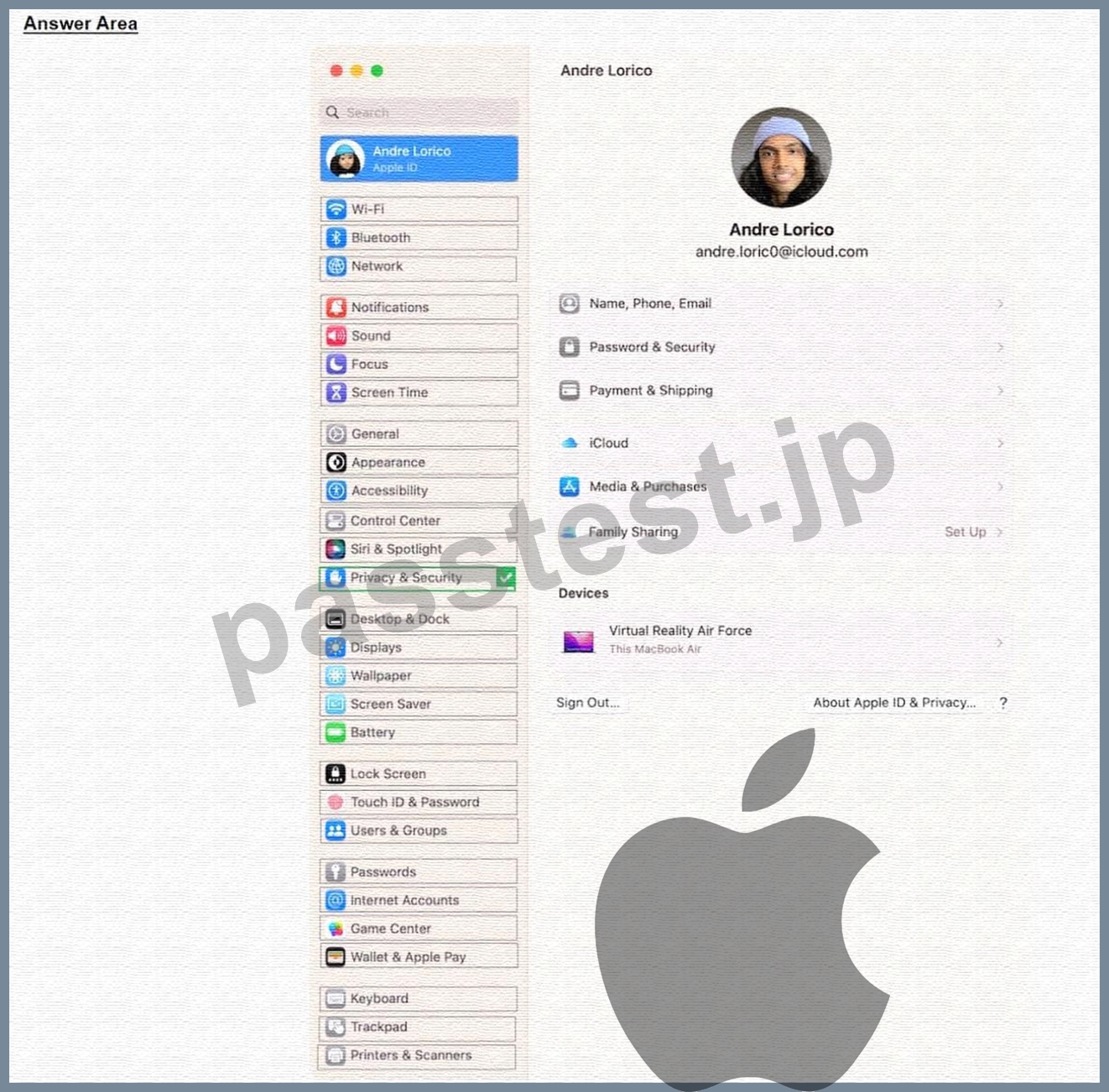
正解:
解説: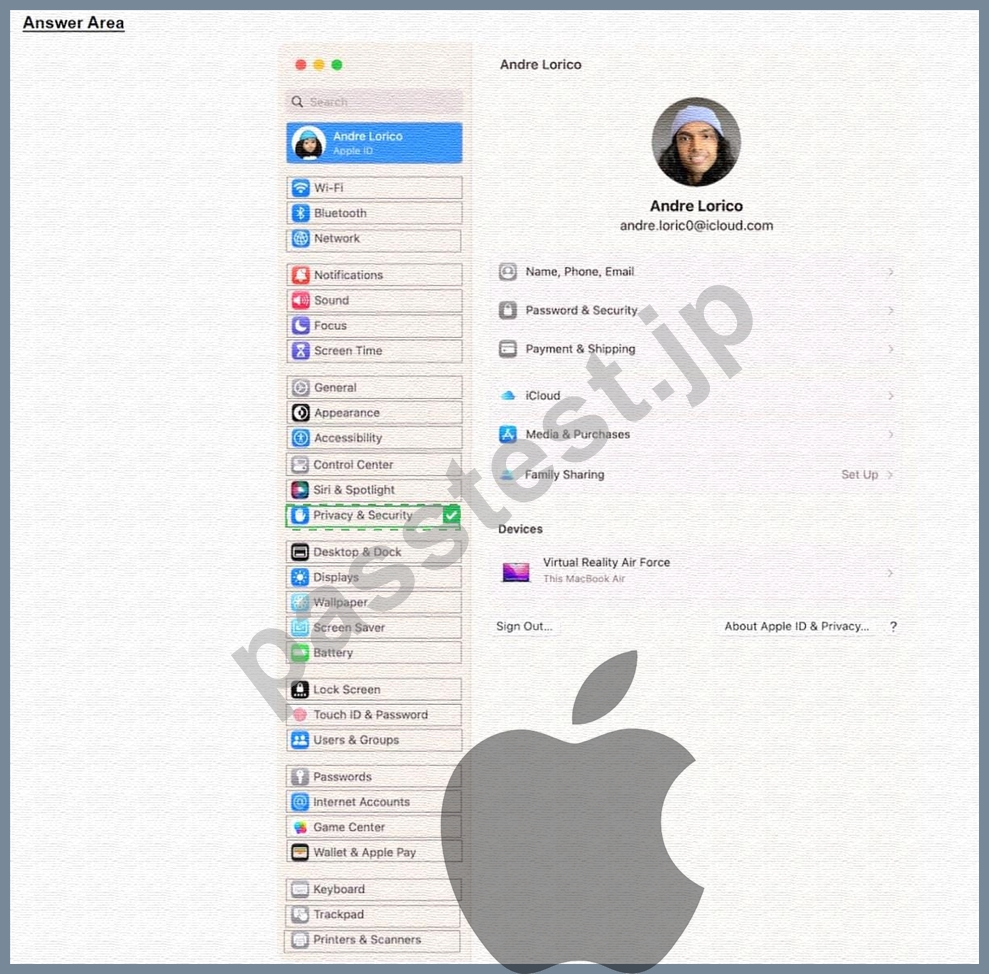
Explanation:
From the sidebar, click Privacy & Security. Scroll down, click Lockdown Mode, then click Turn On.
https://support.apple.com/en-us/105120#:~:text=From%20the%20sidebar%2C%20click%20Privacy,Mode%2C%
質問 # 66
Select the setting in the sidebar that you should use to turn on firewall on your Mac.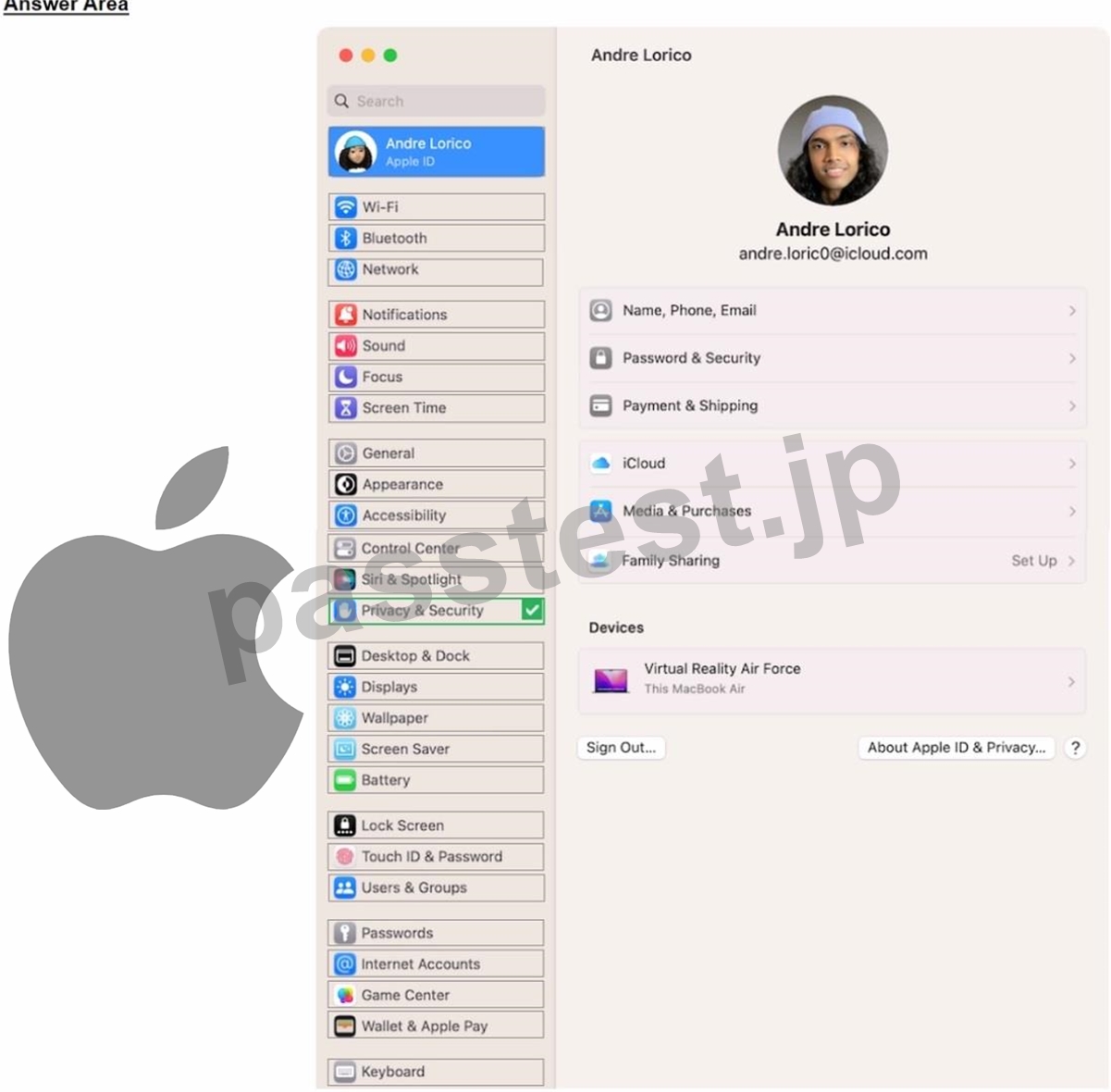
正解:
解説: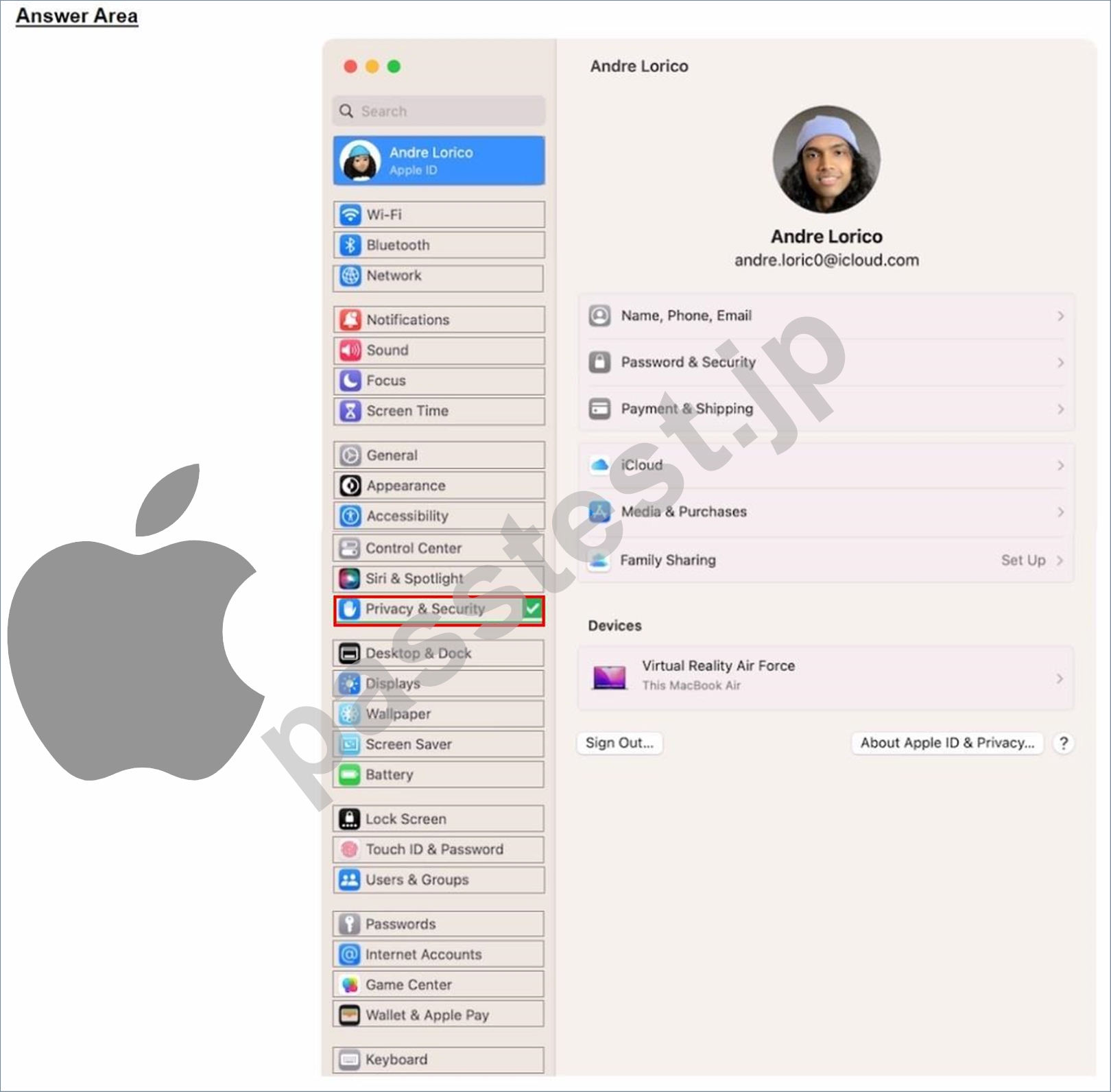
質問 # 67
ACME, Inc. wants all users to see mounted servers in the Finder by default.
Which terminal command should you use to modify the Finder preferences to display mounted servers?
- A. defaults read com.apple.finder ShowMountedServersOnDesktop true
- B. defaults write com.apple.finder ShowMountedServersOnDesktop true
- C. defaults cat com.apple.finder ShowMountedServersOnDesktop true
- D. defaults append ShowMountedServersOnDesktop com.apple.finder true
正解:B
解説:
The terminal command defaults write com.apple.finder ShowMountedServersOnDesktop true sets the Finder preference to show mounted servers on the desktop. This is equivalent to checking the box for "Connected Servers" in the Finder settings under the General tab. The other commands are either invalid or do not change the preference value.
* defaults read com.apple.finder ShowMountedServersOnDesktop true reads the current value of the preference, but does not modify it.
* defaults cat com.apple.finder ShowMountedServersOnDesktop true is not a valid command, as cat is not a valid subcommand for defaults.
* defaults append ShowMountedServersOnDesktop com.apple.finder true appends the value true to the preference key ShowMountedServersOnDesktop, which is not a valid operation, as the preference value should be a boolean, not a list. References:
* Apple Device Support Exam Prep Guide, page 11
* Change Finder settings on Mac
* How to show Hard Disk icon on Desktop via Terminal?
質問 # 68
ACME, Inc. wants to ensure that iPhone and iPad backups created with Apple Configurator on a Mac are encrypted and protected with a password. Which action in Apple Configurator should you select to create password encrypted backups?
- A. Actions > Prepare, then select Encrypt Backups
- B. Actions > Advanced > Enable Encrypted Backups
- C. Actions > Apply > Backup Password
- D. Actions > Advanced > Encrypt
正解:B
質問 # 69
Which Apple program should you join if you're in charge of testing your organization's infrastructure and its ability to work with the Apple software before public release?
- A. Apple Developer Program
- B. Design for IT
- C. Apple Developer Enterprise Program
- D. Apple Seed for IT
正解:D
質問 # 70
What should you do in the app's Get Info window if your Mac with Apple silicon doesn't recognize a needed app plug-in when you open the app?
- A. Select the "Open using Rosetta" checkbox for the app.
- B. Select the "Open using Rosetta" checkbox for the plug-in.
- C. Choose Universal from the Kind pull-down menu for the plug-in.
- D. Choose Universal from the Kind pull-down menu for the app.
正解:A
解説:
Some universal apps (apps that don't need Rosetta) include the setting "Open using Rosetta." This setting enables a universal app such as a web browser to use plug-ins, extensions, or other add-ons that do need Rosetta, because they haven't been updated to support Apple silicon. If a universal app doesn't recognize an add-on that you installed for the app, you can quit the app, select this setting, and try again. To do this, you need to open the app's Get Info window and check the box labeled "Open using Rosetta". References: If you need to install Rosetta on your Mac - Apple Support, How to force universal Mac apps to run under Rosetta emulation, How to Launch the Intel Version of a Universal Apple Silicon App
質問 # 71
Which troubleshooting steps should you follow if Quick Start does NOT automatically discover the other device?
- A. Turn off Bluetooth and Wi-Fi to avoid interference when discovering devices.
- B. Connect both devices to Wi-Fi and make sure that they're placed near each other.
- C. On your current device, go to Settings > Bluetooth and select your new device from the list of options.
- D. Restart both devices and try again.
正解:D
質問 # 72
Which two types of Activation Lock are available to organizations?
- A. Personal
- B. Individual-linked
- C. Organization
- D. User-linked
- E. Device-linked
正解:D、E
解説:
Activation Lock is a feature that prevents unauthorized use of an Apple device after it has been erased. It is enabled automatically when a user turns on Find My on their device. However, for devices that are owned or managed by an organization, there are two types of Activation Lock available: device-linked and user-linked.
Device-linked Activation Lock requires Apple School Manager, Apple Business Manager, or Apple Business Essentials and an MDM solution. It allows the MDM solution to control turning Activation Lock on and off through server-side interactions, without depending on the user's Apple ID or Find My settings. The MDM solution creates and sends a bypass code to Apple servers when it needs to lock or unlock the device.
User-linked Activation Lock requires the user to have a personal Apple ID (not a Managed Apple ID) and to turn on Find My on their device. This method allows the user to lock an organization-linked device to their personal Apple ID if the MDM solution has allowed Activation Lock. The MDM solution should request and store a bypass code from the device before allowing the user to turn on Activation Lock. This bypass code can be used to turn off Activation Lock remotely with MDM, or directly on the device, if the user is unable to authenticate with their Apple ID. References:
* Activation Lock on Apple devices - Apple Support
* Activation Lock: How Apple Admins Can Manage It - Kandji
* Disable Activation Lock on Apple devices with Intune
質問 # 73
What is the feature that allows you to share your screen in Facetime?
- A. Continuity Camera
- B. Stage Manager
- C. Shareplay
- D. Sidecar
正解:C
質問 # 74
Use this image to answer the question.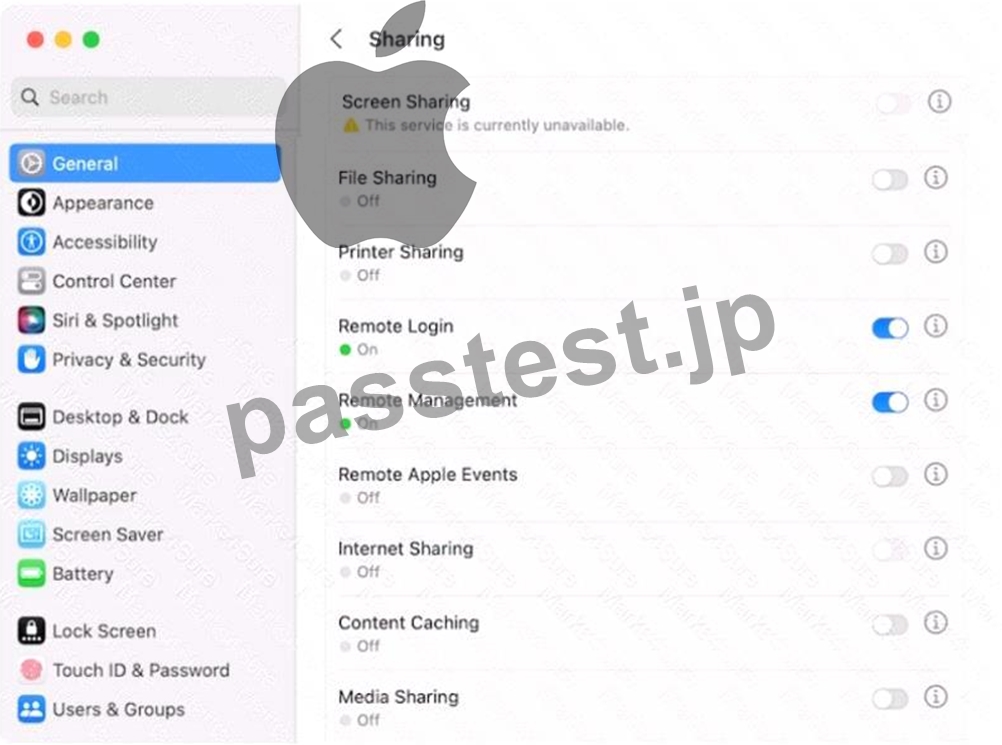
Why is the screen sharing service disabled with the message "This service is currently unavailable"?
- A. Screen sharing is being controlled by the remote management service.
- B. TCP and UDP ports 5900 are currently blocked on this network.
- C. An internet connection is currently unavailable.
- D. Screen sharing is being controlled by the remote login service.
正解:A
解説:
According to the image you sent, the screen sharing service is disabled because the remote management service is turned on. You can't have both screen sharing and remote management on at the same time. Remote management allows you to perform more advanced tasks on another Mac, such as installing and configuring apps, helping remote users, and creating detailed reports. Screen sharing allows you to view and control another Mac's screen. To enable screen sharing, you need to turn off remote management first. You can do this by going to System Settings > General > Sharing and deselecting Remote Management. Then you can check the box next to Screen Sharing to turn it on. Alternatively, you can use Apple Remote Desktop, a commercial app that combines the features of screen sharing and remote management, and works with both Intel-based and Apple silicon Macs. References: Turn Mac screen sharing on or off - Apple Support, Mac screen sharing won't work? Disable it! Then turn it back on, Revive or restore a Mac with Apple silicon using Apple Configurator - Apple Support
質問 # 75
What MUST you do before you reach the macOS Recovery options when your Mac with Apple silicon has FileVault or Activation Lock turned on?
- A. Log in using the administrator's Apple ID and two-factor authentication.
- B. Access the Startup Security Utility and enter the administrator's six-digit passcode to unlock the system.
- C. Enter the FileVault recovery key, then select an administrator user account.
- D. Select one of the displayed administrator accounts, then provide the account's password.
正解:B
質問 # 76
Select two responses.
Which two ways can you use to reset a FileVault password on a Mac?
- A. Authenticator app
- B. Using a trusted device
- C. SMS verification code
- D. iCIoud account and password
- E. Recovery key
正解:D、E
解説:
FileVault is a feature that encrypts the data on your Mac's startup disk, making it more secure. To unlock your Mac, you need to enter your account password or a recovery key. A recovery key is a 28-character code that is generated when you turn on FileVault. You can choose to store it in iCloud or write it down and keep it in a safe place. An iCloud account and password can also be used to reset your FileVault password, if you enabled this option when you turned on FileVault. The other options, authenticator app, using a trusted device, and SMS verification code, are not valid ways to reset a FileVault password on a Mac. References: 1 Use FileVault to encrypt the startup disk on your Mac - Apple Support 2 Reset a macOS User Password - Kandji 3 How to unlock your Mac with its Recovery Key and FileVault active - Macworld
質問 # 77
Select Four.
What file system formats are available in Disk Utility on a Mac
- A. MS-DOS (FAT)
- B. GFS
- C. NTFS
- D. ExFat
- E. Mac OS Extended
- F. APFS
正解:A、D、E、F
解説:
Disk Utility on Mac supports several file system formats for formatting, partitioning, and erasing disks. According to the Apple Device Support Reference Materials1, these formats are:
* Apple File System (APFS): The file system used by macOS 10.13 or later, which features strong encryption, space sharing, snapshots, fast directory sizing, and improved file system fundamentals.
APFS is optimized for the Flash/SSD storage used in recent Mac computers, but it can also be used with older systems with traditional hard disk drives (HDD) and external, direct-attached storage. APFS supports four variants: APFS, APFS (Encrypted), APFS (Case-sensitive), and APFS (Case-sensitive, Encrypted).
* Mac OS Extended: The file system used by macOS 10.12 or earlier, which is also known as HFS Plus or HFS+. Mac OS Extended supports journaling, which helps protect the integrity of the file system in case of power outages or hardware failures. Mac OS Extended also supports four variants: Mac OS Extended (Journaled), Mac OS Extended (Journaled, Encrypted), Mac OS Extended (Case-sensitive, Journaled), and Mac OS Extended (Case-sensitive, Journaled, Encrypted).
* ExFAT: A file system that is compatible with both Mac and Windows computers, and can be used for transferring files between them. ExFAT supports larger file sizes than FAT32, up to 16 EB, and larger volumes, up to 128 PB. ExFAT does not support journaling, encryption, or case sensitivity.
* MS-DOS (FAT): A file system that is compatible with both Mac and Windows computers, and can be used for transferring files between them. MS-DOS (FAT) supports two variants: FAT16 and FAT32.
FAT16 is limited to 2 GB volumes and 4 GB files, while FAT32 can support up to 2 TB volumes and 4 GB files. MS-DOS (FAT) does not support journaling, encryption, or case sensitivity.
Therefore, the correct answer is A, C, D, and F.
References:
* File system formats available in Disk Utility on Mac.
質問 # 78
What can you do if you forget your iPhone passcode?
- A. Use your Apple ID to get into your phone.
- B. Put the phone in recovery mode and attempt to restore it in Apple Configurator.
- C. Connect the phone to a mac and erase all content and settings.
- D. Wait for the "forgot your passcode?" prompt to appear and follow the onscreen instructions.
正解:C
解説:
If you forget your iPhone passcode, you can use a Mac to erase your iPhone and remove the passcode. This will delete all your data and settings, but you can restore them from a backup if you have one. To erase your iPhone using a Mac, you need to put your iPhone in recovery mode and connect it to the Mac with a cable.
Then, you need to open Finder and locate your iPhone. You will see an option to Restore or Update your iPhone. Choose Restore and wait for the process to complete. After your iPhone is erased, you can set it up again and restore your data from a backup or iCloud. References: If you forgot your iPhone passcode - Apple Support, Erase your iPhone - Apple Support
質問 # 79
Which macOS feature allows you to use your iPhone as a webcam?
- A. Focus
- B. Stage Manager
- C. Quick Look
- D. Continuity Camera
正解:D
解説:
Continuity Camera is a macOS feature that allows you to use your iPhone as a webcam on your Mac. With Continuity Camera, you can take advantage of the powerful iPhone camera and additional video effects, such as Center Stage, Portrait mode, Studio Light, and Desk View. You can connect your iPhone to your Mac wirelessly or with a USB cable, and choose your iPhone as the camera or microphone in apps that support it, such as FaceTime or Photo Booth1. The other options, Focus, Stage Manager, and Quick Look, are not macOS features that allow you to use your iPhone as a webcam. Focus is a feature that helps you reduce distractions and stay focused on what matters to you2. Stage Manager is a third-party app that lets you control your live stream from your iPhone3. Quick Look is a feature that lets you preview files without opening them4. References: 1 Use your iPhone as a webcam on Mac - Apple Support 2 Use Focus on your Mac - Apple Support 3 Stage Manager - App Store 4 Use Quick Look on Mac - Apple Support
質問 # 80
Use this image to answer the question.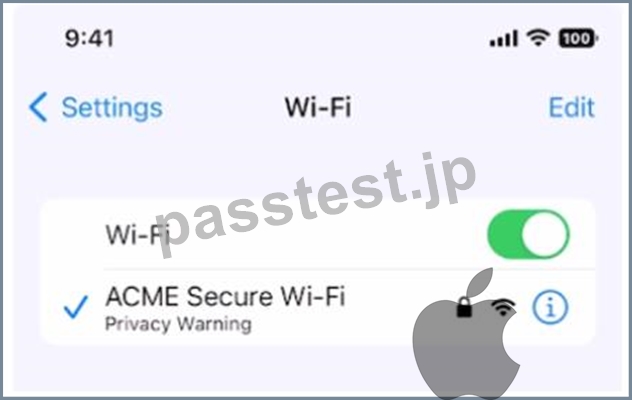
What does this iPhone Privacy Warning message indicate?
- A. Local network access is enabled for a third-party app
- B. Limit IP Address Tracking is disabled for this network
- C. Private Wi-Fi Address is disabled for this network
- D. iOS has detected a spoofed MAC address on the network
正解:C
質問 # 81
Which macOS feature allows you to use your iPhone as a webcam?
- A. Focus
- B. Stage Manager
- C. Quick Look
- D. Continuity Camera
正解:D
質問 # 82
......
Apple Apple-Device-Support 認定試験の出題範囲:
| トピック | 出題範囲 |
|---|---|
| トピック 1 |
|
| トピック 2 |
|
| トピック 3 |
|
| トピック 4 |
|
| トピック 5 |
|
| トピック 6 |
|
| トピック 7 |
|
| トピック 8 |
|
| トピック 9 |
|
| トピック 10 |
|
実際にあるPassTest Apple-Device-Support問題集PDFで100%合格率 保証付き:https://www.passtest.jp/Apple/Apple-Device-Support-shiken.html
無料Apple Apple-Device-Support試験問題と解答:https://drive.google.com/open?id=1IgWWiIcSUucy7Tj1F3BH7oOKa7QPOFs3